Email Setup
Basic Email Settings
Hostname: mail.image1tech.net
POP3 port: 995 (TLS Required)
IMAP port: 993 (TLS Required)*
SMTP port: 465 (TLS Required)
Webmail: https://mail.image1tech.net/
* IMAP Service is recommended for most users.
Microsoft Outlook
An Office365 Plan or Microsoft Office License is required to use Microsoft Outlook.
Step 1: Open Microsoft Outlook. The email setup dialog will start automatically.
Step 2: Enter your email address and click Continue.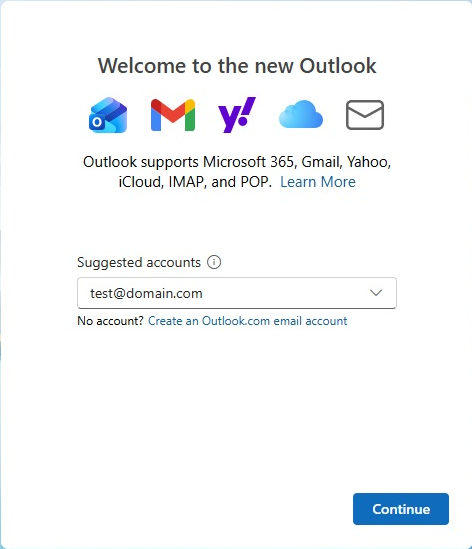
Step 3: In the Select your email provider, click on IMAP.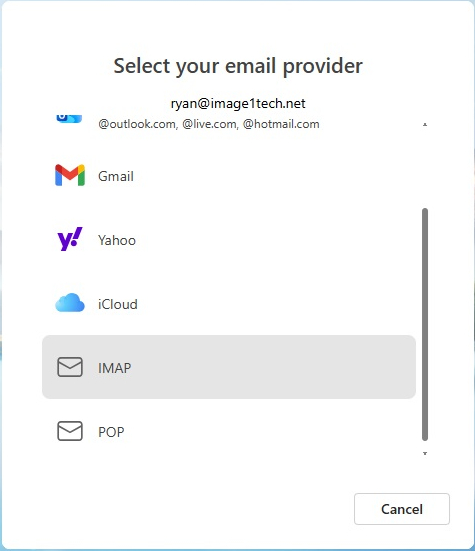
Step 4: In the IMAP dialog box, fill in your Password and set the following options:
IMAP Incoming server: mail.image1tech.net
Port: 993
Secure Connection Type: SSL/TLS (recommended)
Scroll down for additional settings.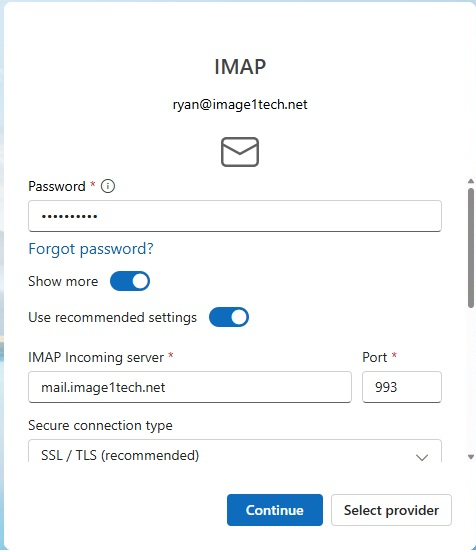
Step 5: Fill in the rest of the SMTP information by adding following options:
SMTP Username: Your email address. Example: user@domain.com
SMTP Password: Your email password.
SMTP Outgoing server: mail.image1tech.net
Port: 465
Secure Connection Type: SSL/TLS (recommended)
Click on "Continue"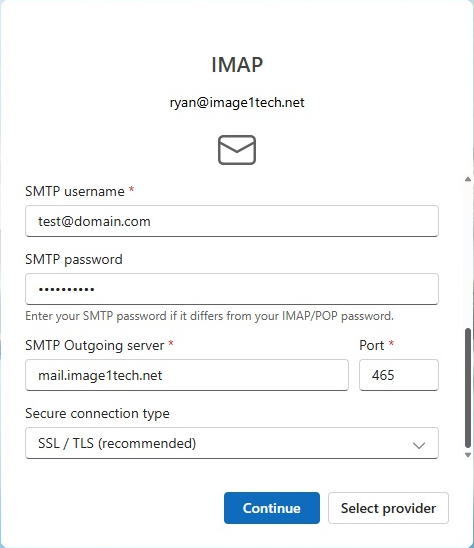
Step 6: Click Continue to finish and add your email account to Outlook.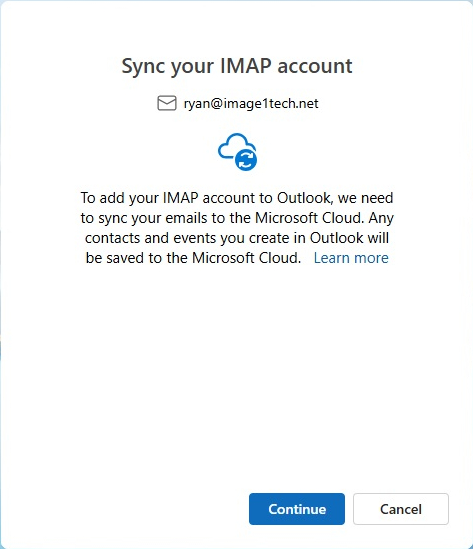
Microsoft Outlook Classic
An Office365 Plan or Microsoft Office License is required to use Microsoft Outlook.
Step 1: Open Outlook Classic. The email setup dialog will start automatically.
Step 2: Enter your Email Address, click the down arrow next to Advanced options and check the box next to "Let me set up my account manually"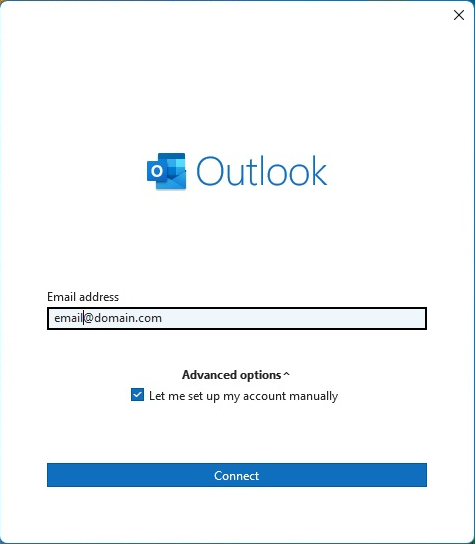
Step 3: Click on IMAP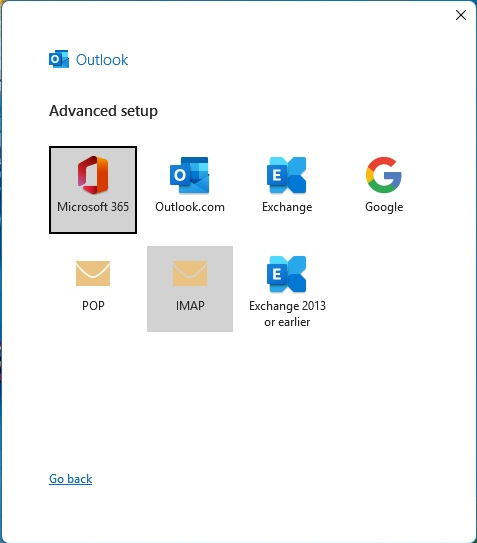
Step 4: Enter the following settings in the IMAP Account Settings window:
Incoming Email Server: mail.image1tech.net, Port: 993
Encryption method: SSL/TLS
Outgoing Mail Server: mail.image1tech.net, Port: 465
Encryption method: SSL/TLS
Click Next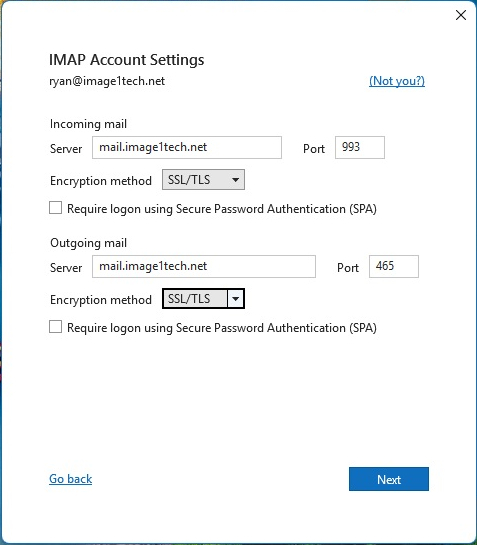
Step 5: Enter your Email Password, click Connect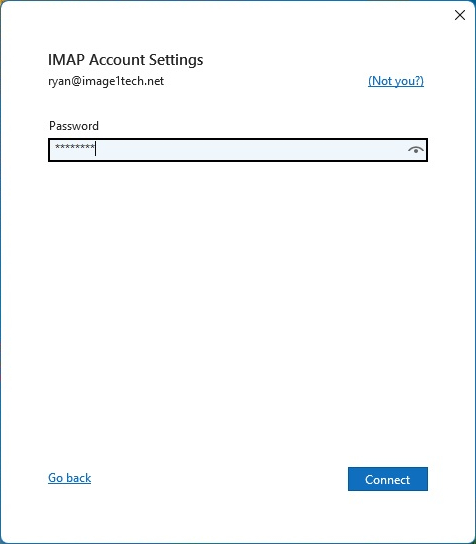
Step 6: Un-Check the box next to "Set up Outlook Mobile on my phone, too" if applicable, and click Done 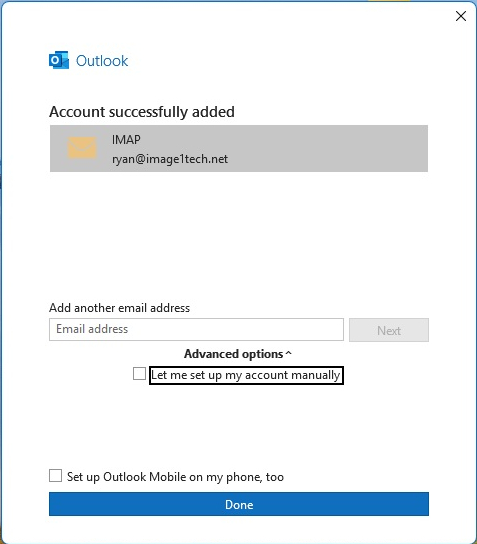
Setup for Outlook Classic is now complete.
Thunderbird
Step 1: Download and Install the Thunderbird from our Utilities page. Install the application with the Standard Settings, and open the Application when the installation completes.
Step 2: When you first open the program, It will open to the Account Setup page. First, Enter your Name, Email Address and Password.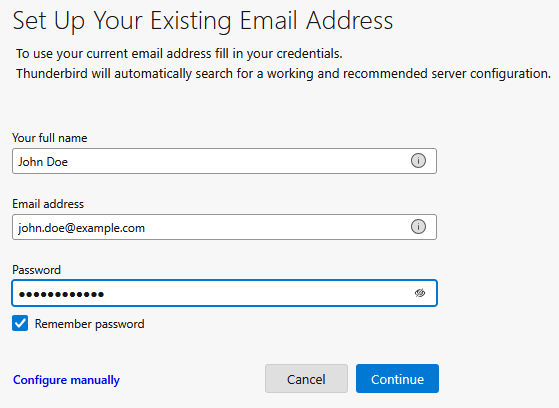
Step 3: Click on the "Configure manually" link at the bottom to bring up the Manual configuration section.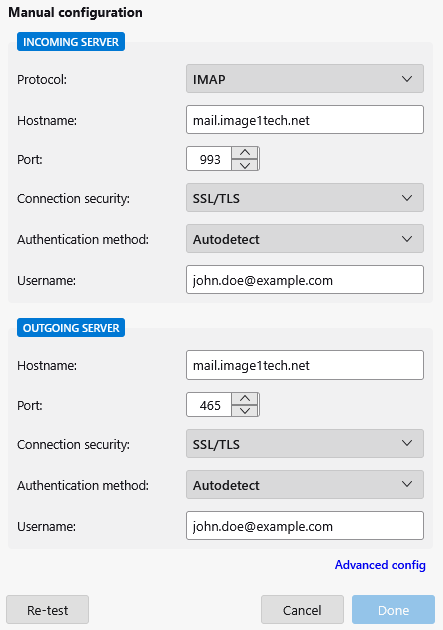
Ensure the following are set correctly:
Incoming Server
Protocol: IMAP
Hostname: mail.image1tech.net
Port: 993
Connection Security: SSL/TLS
Username: (Your Email Address)
Outgoing Server
Hostname: mail.image1tech.net
Port: 465
Connection Security: SSL/TLS
Username: (Your Email Address)
Step 3: To validate your entries, click on the "Re-Test" button. If the settings are validated correctly, you can then press the "Done" button.
Step 4: Next, you can finish the account setup my pressing the "Finish" button at the bottom of the screen.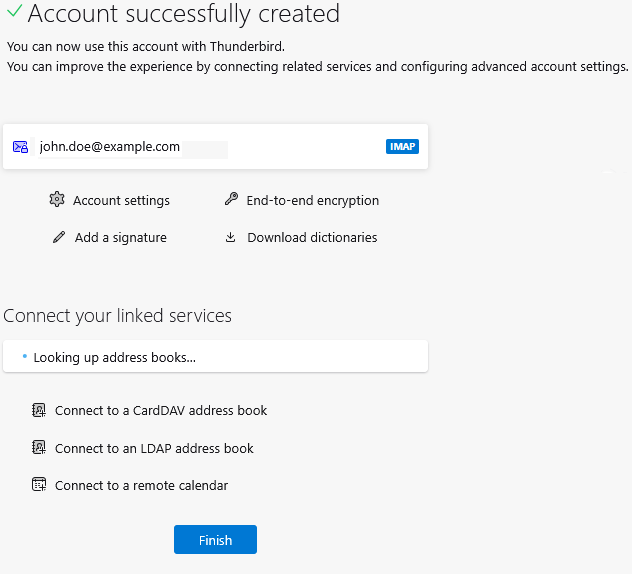
Zimbra Desktop
Step 1: Download and Install the Zimbra Desktop Program from our Utilities page. Open the Application when the installation completes.
Step 2: When you first open the program, it will ask for the zimbra server hostname. Enter mail.image1tech.net.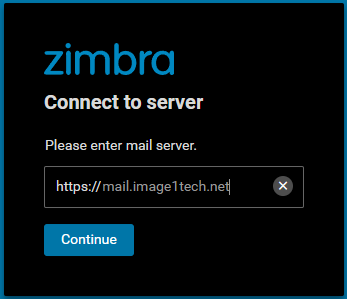
You will only need to enter the server hostname once, upon installation.
Step 3: Enter the Email Address and Password for your account.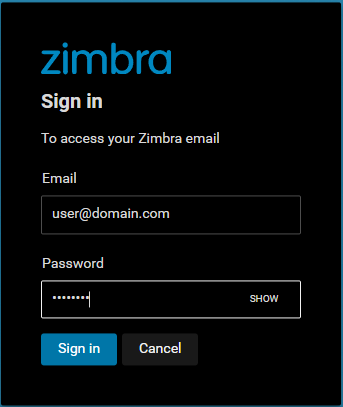
You will not be be connected to the Zimbra Desktop application.